
How to Connect Your Devices to Wi-Fi
Without the Headache
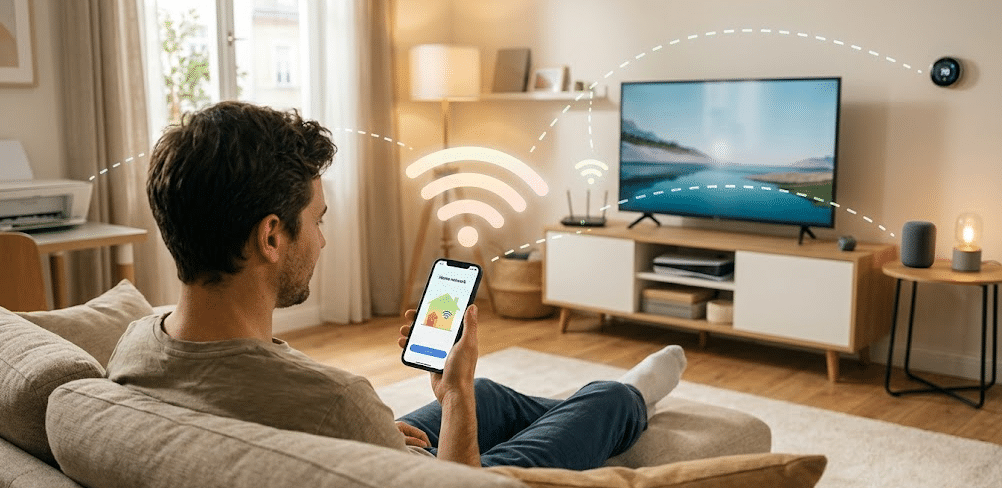
You bring home a new smart TV, printer, security camera or appliance. You plug it in, turn it on and then comes the part that can feel more complicated than expected: connecting it to Wi-Fi.
Today, Wi-Fi is not just for phones and laptops. Everything from your doorbell to your refrigerator may rely on your home network. The good news is that most devices follow a similar setup process.
Here is a simple guide for connecting some of the most common devices in your home.
Before You Start
First, make sure you know your Wi-Fi network name and password.
If you use a Beehive GigaSpire router, the CommandIQ app can help you manage your home network, view connected devices and manage your network name and password.
It is also a good idea to set up your device somewhere with a strong Wi-Fi signal before moving it to its permanent location.
Wireless Printers
Most wireless printers connect through the printer’s settings menu or the manufacturer’s mobile app.
Look for an option such as Wi-Fi, Wireless Setup or Network Setup. Choose your home network, enter your password and allow the printer to connect.
Make sure the phone, tablet or computer you are printing from is connected to the same network.
If the printer does not appear, restarting the printer and checking the Wi-Fi connection are good first steps.
Wireless Cameras and Video Doorbells
Devices such as Ring doorbells and wireless security cameras are typically set up through the manufacturer’s app.
Download the app, choose the option to add a new device and follow the instructions to connect it to your Wi-Fi network.
Placement matters with outdoor cameras. If a camera is far from your router or frequently goes offline, weak Wi-Fi coverage may be part of the problem.
Smart Washers and Refrigerators
Many newer washers, dryers, refrigerators and other appliances can connect to your home Wi-Fi.
Setup usually happens through the appliance manufacturer’s app. You may need to press a Wi-Fi or connection button on the appliance before the app can find it.
Once connected, available features may include notifications, appliance status information and other remote controls, depending on the model.
Smart TVs
Smart TVs are usually straightforward to connect.
Open your TV’s settings and look for Network, Internet or Wi-Fi. Select your home network, enter your password and wait for the TV to confirm the connection.
If streaming works well near your router but struggles on a TV farther away, you may have a Wi-Fi coverage issue rather than an internet speed issue.
Thermostats, Lights and Other Smart Home Devices
Smart thermostats, light bulbs, plugs, speakers and other smart home devices generally connect through the manufacturer’s app.
Turn on the device, open the app and follow the prompts to add it to your Wi-Fi network.
One important thing to keep in mind is that some smart devices work best, or only work, on a 2.4 GHz Wi-Fi connection. Beehive notes that 2.4 GHz can be useful for smart devices and devices located farther from your router because it provides greater range.
If a smart device will not connect, check its instructions to see whether it requires 2.4 GHz Wi-Fi.
What If a Device Still Will Not Connect?
Start with the basics.
Double-check your Wi-Fi password, make sure the device is within range of your router and restart the device before trying setup again.
You should also check the manufacturer’s instructions for any specific Wi-Fi requirements.
If several devices are having connection problems, or certain areas of your home consistently have weak Wi-Fi, the issue may be your home Wi-Fi coverage.
Beehive’s Managed Wi-Fi service includes a GigaSpire router, CommandIQ app access, device connection assistance, Wi-Fi analysis, remote support, and options for extending coverage throughout your home.
Make the Most of Your Home Wi-Fi
Printers, cameras, TVs, appliances, thermostats and lights can all depend on your Wi-Fi connection.
Getting them online does not have to be complicated. Start with your network information, follow the setup instructions for your specific device and make sure you have a strong signal where the device will be used.
Need help with your home Wi-Fi or connecting your devices? Contact Beehive Broadband at 844-390-3310 or at support@beehive.net to learn more about Managed Wi-Fi and find the setup that works best for your home.
SIGN UP
NOW
Areas we serve.
Utah
Bear River, Bothwell, Brigham City, Bullfrog, Caineville, Callao, Cedar Highlands, Centerville, Clearfield, Elwood, Enterprise, Erda, Eskdale, Gandy, Garrison, Gold Hill, Grantsville, Grouse Creek, Howell, Ibapah, Kelton, Kolob, Lake Point, Layton, Lehi, Lindon, Lofgreen, Lucin, Lynn, Marble Hill, Mantua, Midvale, Morgan, Mountain Green, Murray, Notom, Orem, Park City, Park Valley, Partoun, Payson, Perry, Petersen, Penrose, Pleasant Grove, Porterville, Providence, Rush Valley, Sandy Ranch, Skull Valley, SLC(Avenues), Snake Valley, Snowville, Stansbury, Stockton, Terra, Thatcher, Ticaboo, Tooele, Tremonton, Trout Creek, Vernon, Wendover, West Haven, West Point, West Valley City, Woodland Hills
Nevada
Burbank, Deeth, Elko, Goshute, Independence, Marys River, Montello, Moor, Oasis, Pilot Valley, Pleasant Valley, Wells, West Wendover